Report settings
What each setting does, and how to choose.
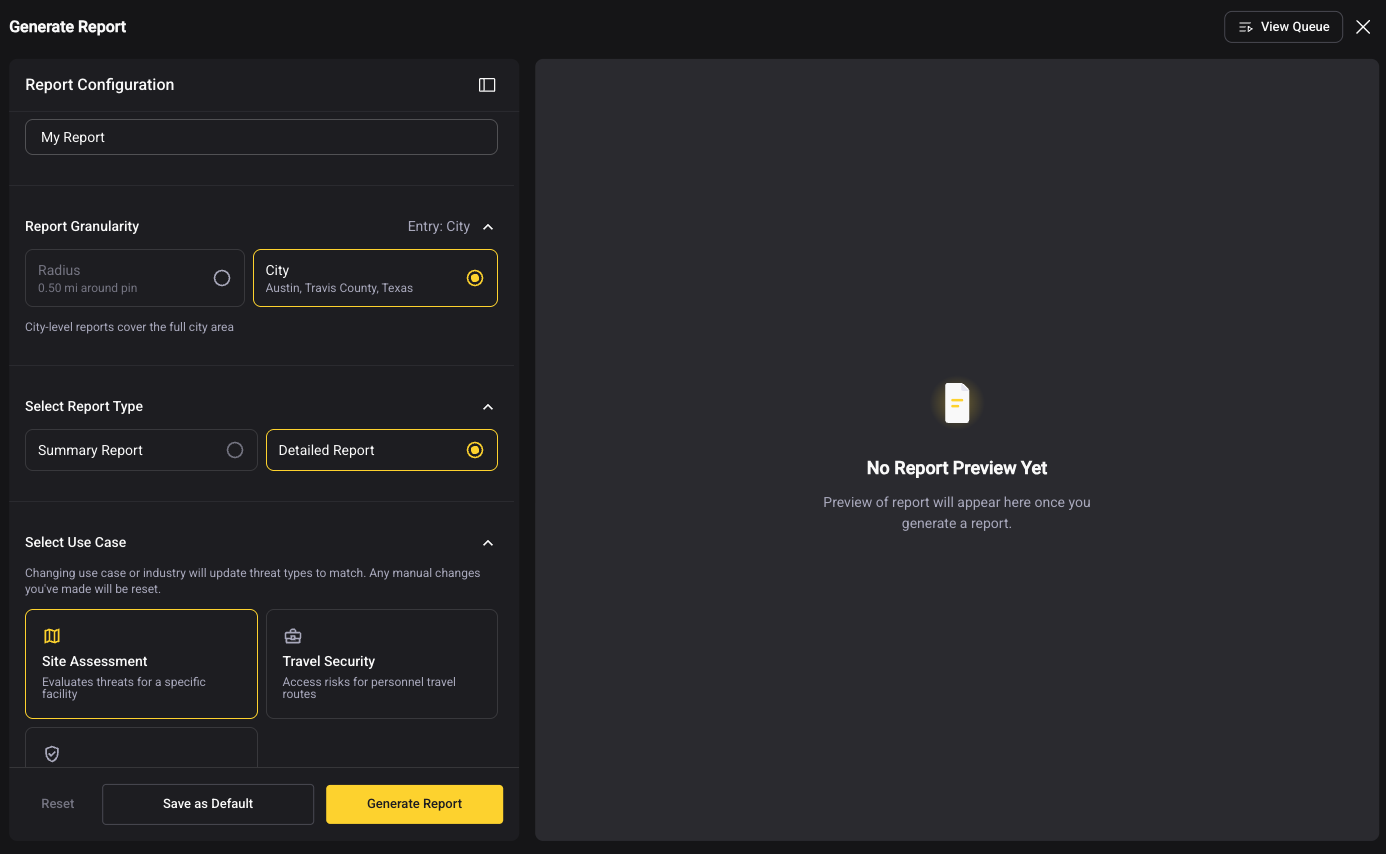
Report type
| Type | Use it for |
|---|---|
| Summary Report | A fast read on a location: score, top threats, a short overview |
| Detailed Report | A full write-up for decisions and sharing. The sections described in Reading your report apply to Detailed reports. |
Use case
The use case sets the purpose of the report and shapes what it emphasizes.
- Site Assessment: evaluates threats for a specific facility
- Travel Security: assesses risks for personnel travel routes
- Event planning: assesses a venue or area for an event
Industry
Industry tailors a site assessment to your line of business. The other two use cases are industry-agnostic and do not use it.
When to choose an industry
Choose one when the report supports decisions about your own operations, such as evaluating a facility you might lease or planning security for a site you run.
Leave it off when you want a general assessment that does not depend on your business, such as checking the security profile of a hotel, a conference venue, or another place unrelated to your operations.
Area and dates
- Area: radius or city, per Area of the report.
- Dates and time horizon: the period the report covers, and how far ahead the forecast looks.
- Forecast: include or leave out the forward-looking view.
Threat types
Choose which threat types the report analyzes.
Changing use case or industry resets threat types
Threat types are matched to your use case and industry. When you change either one, Reports warns you and then updates the selection. Any manual changes you made to threat types are reset. Make those two choices first, then adjust threat types.
The threat types you choose affect the crime sections of the report. They do not change the executive summary or the KPI section, which stay the same so every report opens with a consistent overview. The body of the report states that its content has been filtered to your selections.
Some sections are independent of threat types and always appear: Terrorism, Emerging Events, and Threat Actors.
You can generate a report with every threat type turned off. It will be short. The crime sections say that no threat types were selected, and the sections that do not depend on them are still written where there is enough information.
Save your defaults, or reset
- Save as Default: stores your current settings for next time. A confirmation appears ("Default settings saved successfully"). Saving replaces any defaults you saved before.
- Reset: clears your filter selection. A confirmation appears ("Filter selection has been reset").