Generating a report
From opening Reports to downloading your file.
Before you start
Reports starts from a location. Open the location you want to assess, either a saved location or any place you have searched. That location is selected for you when Reports opens.
Steps
-
Open Reports. Use the report button on the location panel.
-
Check the area. Reports opens at the level you were viewing. See Area of the report below.
- Choose your settings. Pick a use case, add an industry if it applies, and set dates and threat types. Details are in Report settings.
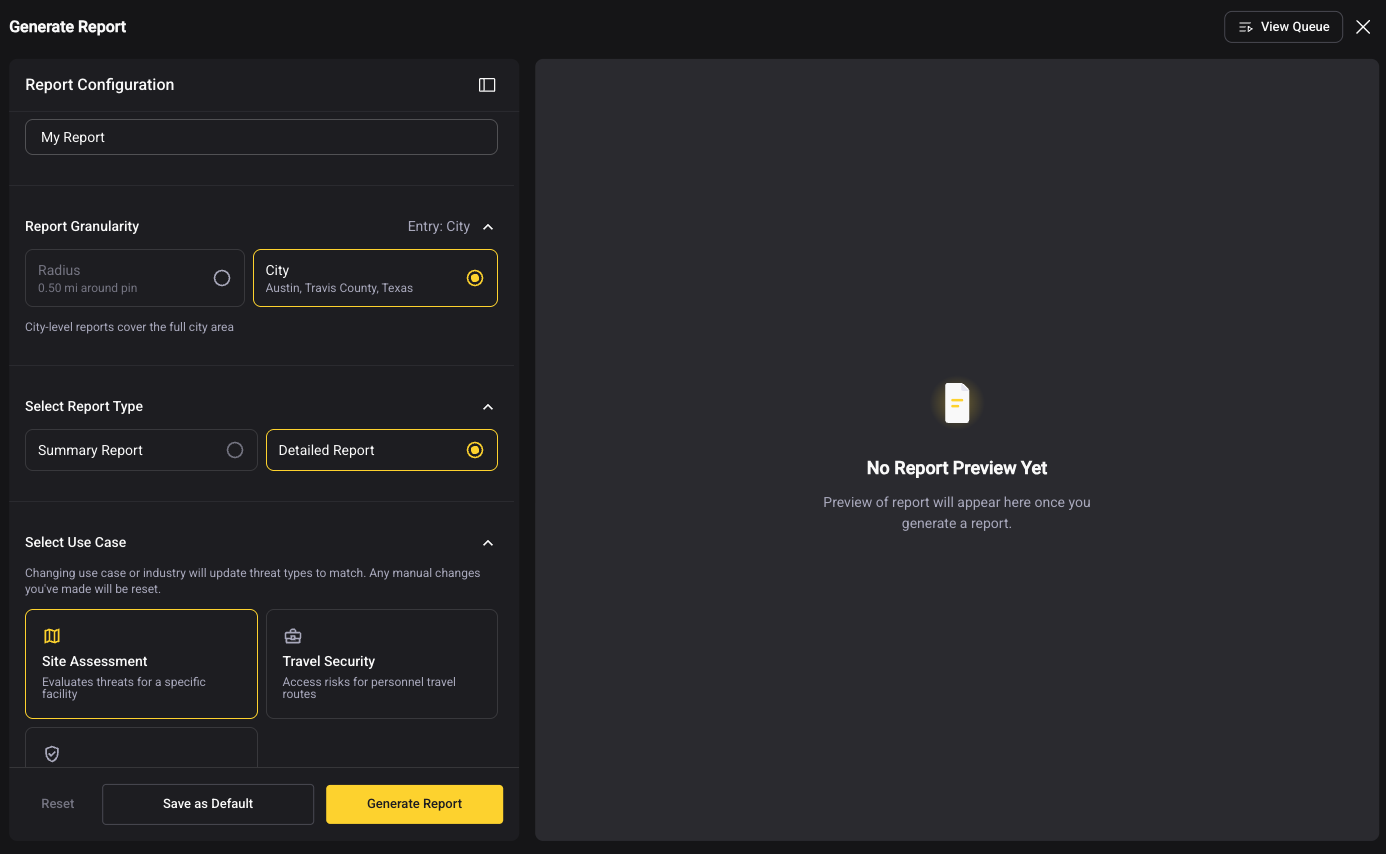
- Name your report. The name you enter appears in the finished document. New reports start as "My Report."
- Select Generate Report.
-
Watch or keep working. Reports shows that generation has started and lists the steps it is taking. You do not need to stay on the page.
-
Preview. When the report is ready, you see a notification and can open a preview.
- Download or refine. Download the report as it is, or change your settings and generate again.
Area of the report
Reports follows the view you opened it from.
| You opened Reports from... | The report starts at... | Can you change it? |
|---|---|---|
| A saved location or radius | Radius | Yes, you can switch to the city that contains it |
| A city | City | No. A city has no center point to draw a radius from, so the Radius option is grayed out |
When the option is unavailable
- Hex view. Reports is not available at the hex level. The report button is disabled, and hovering over it explains why: "Report generation is currently not available at the hex level."
- Cities without a boundary map. Where we do not have a city boundary, the platform shows a temporary radius and city-level statistics are not available. You can generate a radius report, but not a city report.
Running more than one report
You can generate up to three reports at the same time. After you start one, change the settings and start another right away.
While reports run, you can open View Queue (top right) to see the status of each one, switch between them to watch progress, and preview any that have finished.
While a report is generating
You can keep using the platform normally, including moving to other locations. You can also log out. Reports keeps running and you are notified when it is done.
Your most recent selections stay in the panel until your session ends (you close the application or are signed out for inactivity) or you move to a different location.
When it is ready
You are notified in the platform: "Your report is ready for download. Download it now or continue refining it." You also receive an email with a download link. The email is for download only; to preview, open the report in the platform.
Next: Managing your reports.